


 Reply With Quote
Great guide. Thanks!

 Likes: 0
Results 1 to 6 of 6
-
22-03-11, 10:14 AM #1Sergeant




- Join Date
- Feb 2011
- Posts
- 61
- Post Thanks / Like

- Rep Power
- 16
- Reputation
- 19
Make Your Trinity Realm Public [Easy Noob Tutorial With Pictures] *HoT*
Hello Dear forum.
i am here to release how to getting your trinity core public, with picture which is easiest to understand if you are a bit noobish.
It's some tutorials i think, but that's just a WHOLE text, as say nothing.
I am here to show a much better tutorial, with pictures, which means it's much easier to understand it.
Alright.
Lets go back to the tutorial.
First of all , go to :
DynDNS.com - Managed DNS, Domain Names and more!
Signup if you aren't member already, then you create an host!
This hostname are going to be your realmlist, so be careful with the name!
Now Let's Starting to getting the IP's / Adresses as you guys needed.
Start ---> Drive , As the pic:
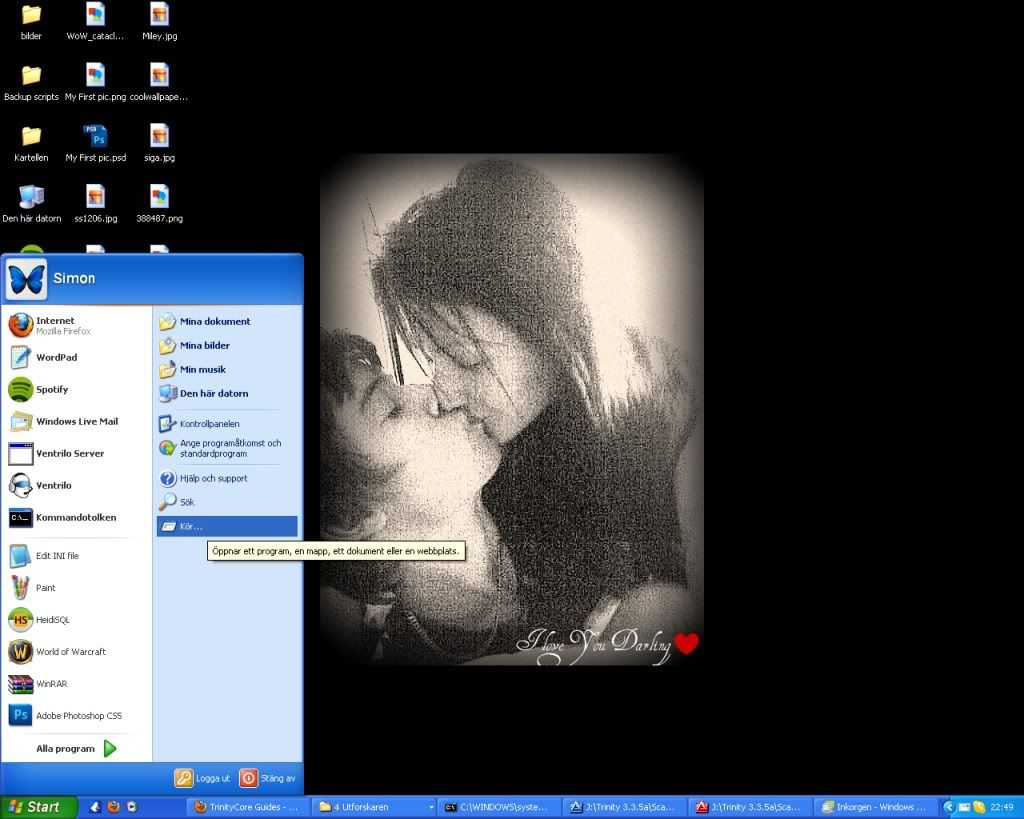
Then type in " CMD "
as the pic:

Now you should getting up the command promph? Right?
Now type in " ipconfig -all "
as the pic:
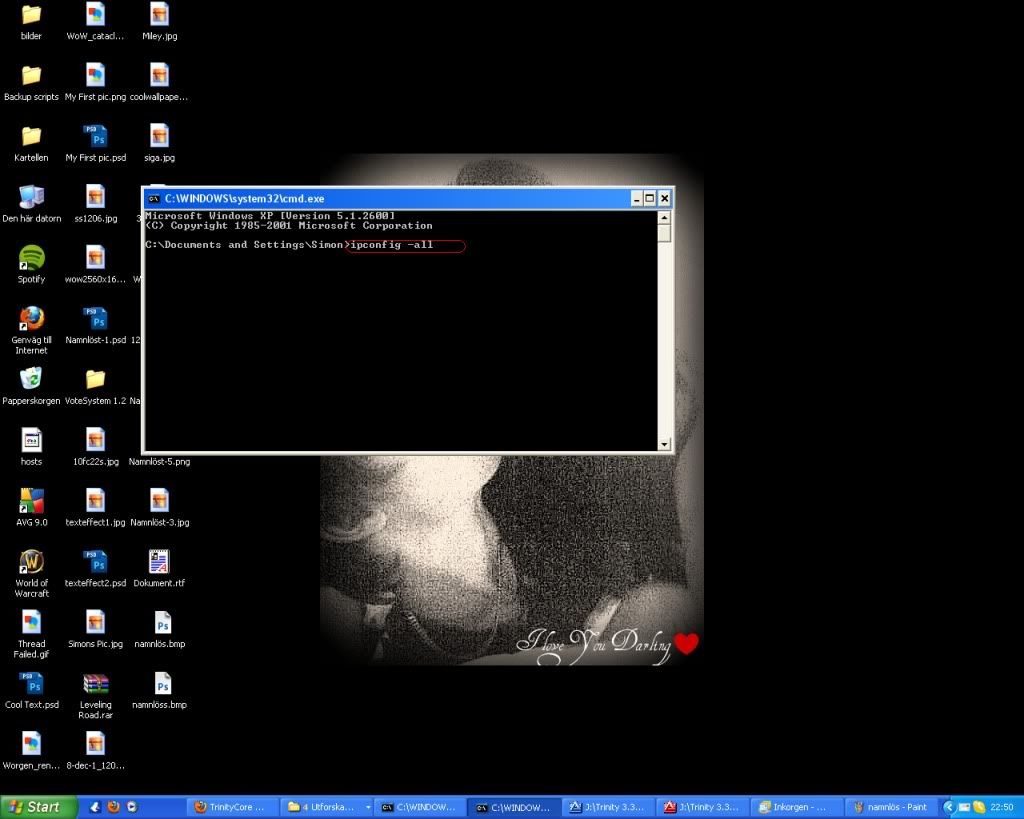
Now you should getting up a list with different kind of stuffs,
Try to found the " Local - Connection 3 " or something like that.
as the pic:
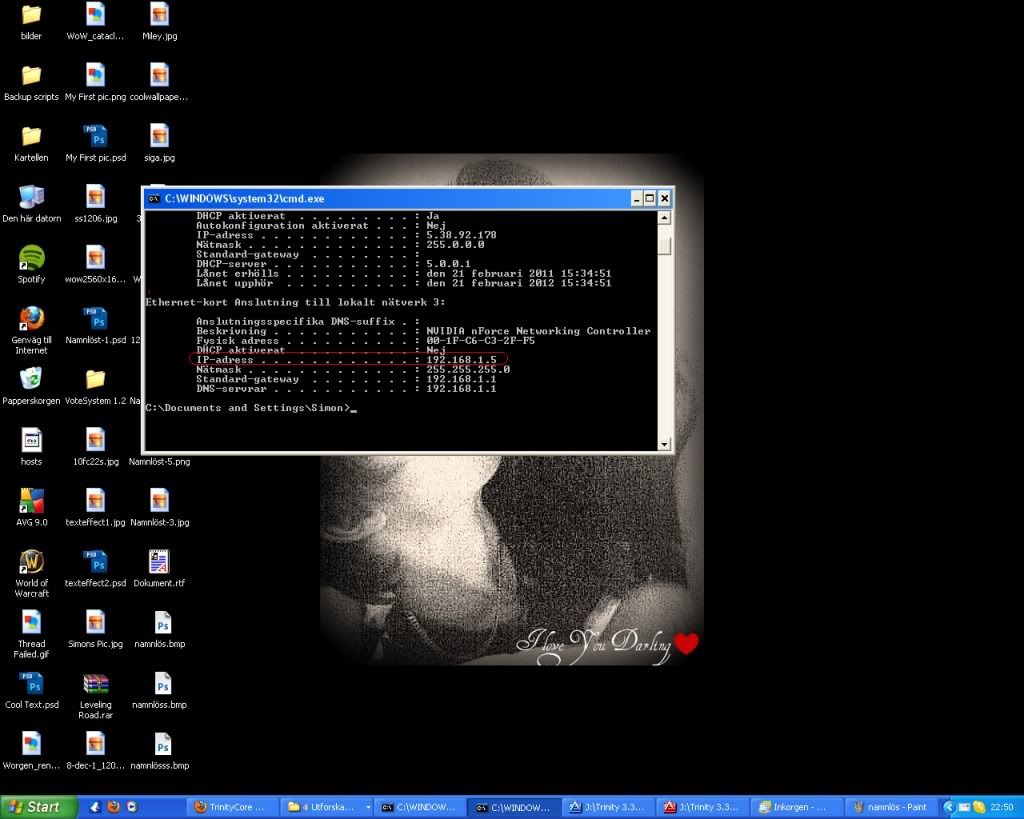
You see on pic , for XP you are going to found " IP Adress ...... [Adress number] "
for VISTA you are going to found " IPV4 Adress....... [Adress number]
Yeye, now copy that number into a document & save the document at the list for now, we are going to paste other things aswell.
Now go to:
What Is My IP Address - Shows Your IP Address [Copy the big blue numbers there]
Now you have [ Internal + External ip's] Now paste in " 127.0.0.1 " in the document aswell.
Now look at the document adress on the pic:
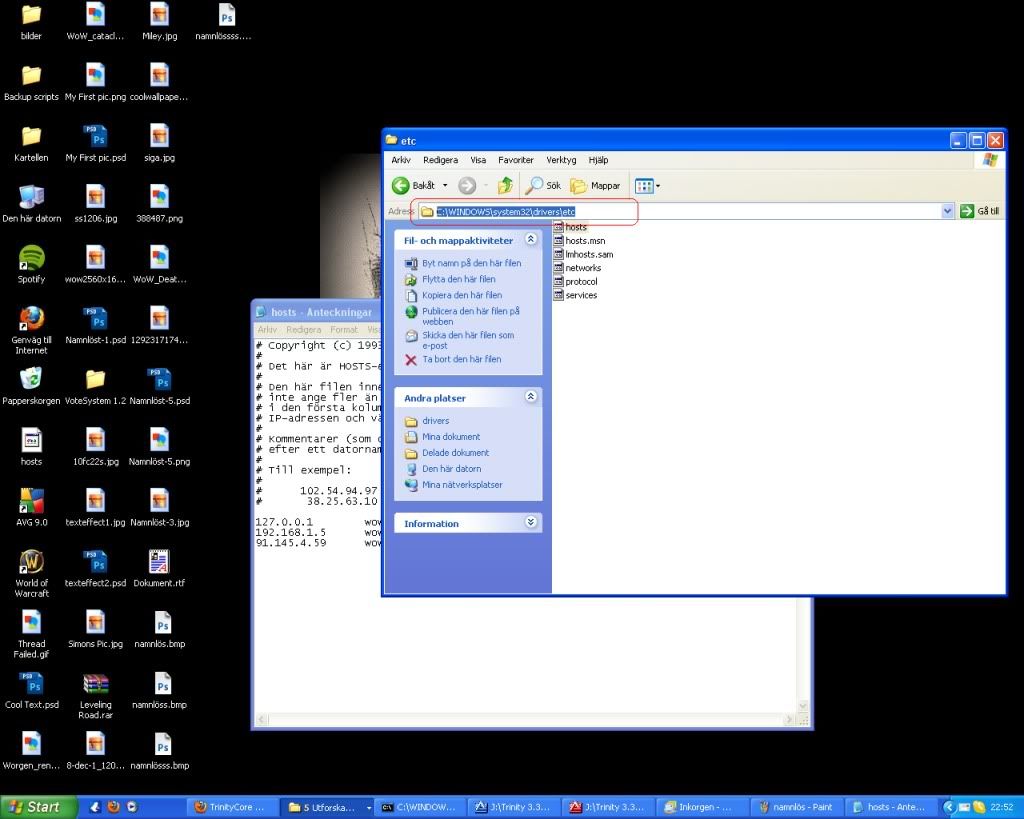
Should seen like:Code:The adress i mean is " c:\windows\system32\drivers\etc " :p Now open up " Host/Hosts file " as you seen in ETC folder, open it up with notepad.
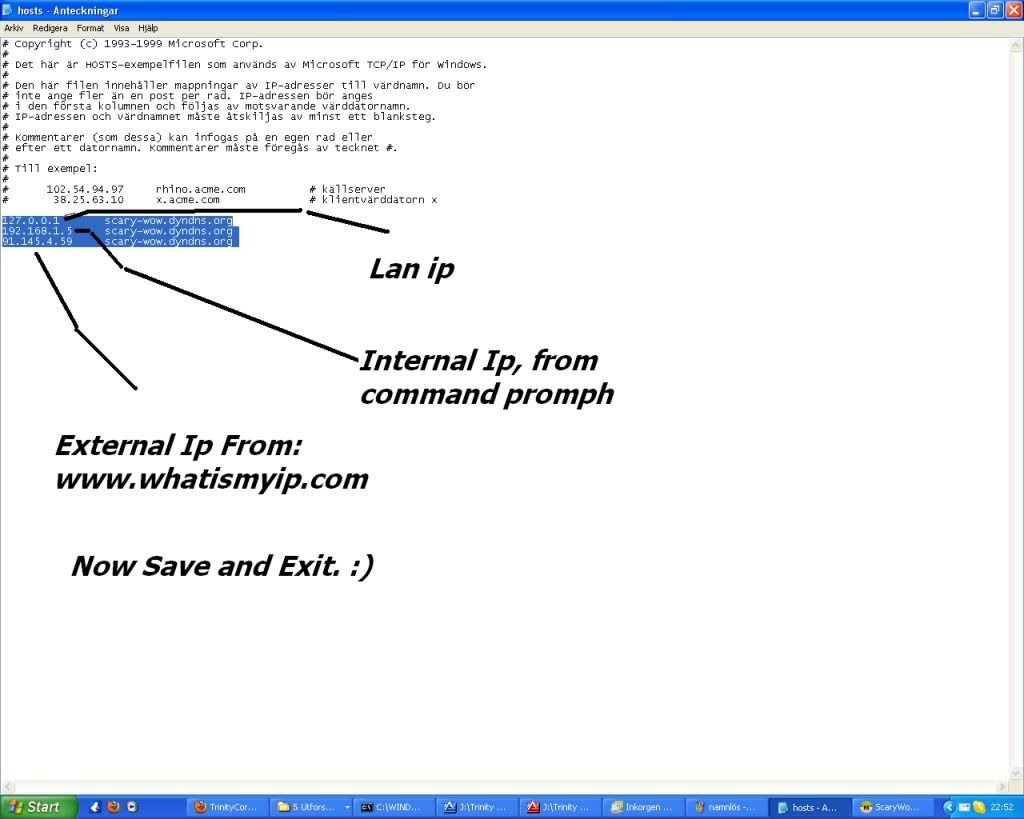
You should paste all the ip's as i have done on the picture, & aswell you see it stands:
[Scary-WoW.Dyndns.com] Change it with the host you build on dyndns.com or / no-ip.com
Now your Host-File is ready!
Now, lets port forwarding!
start internet, type in:
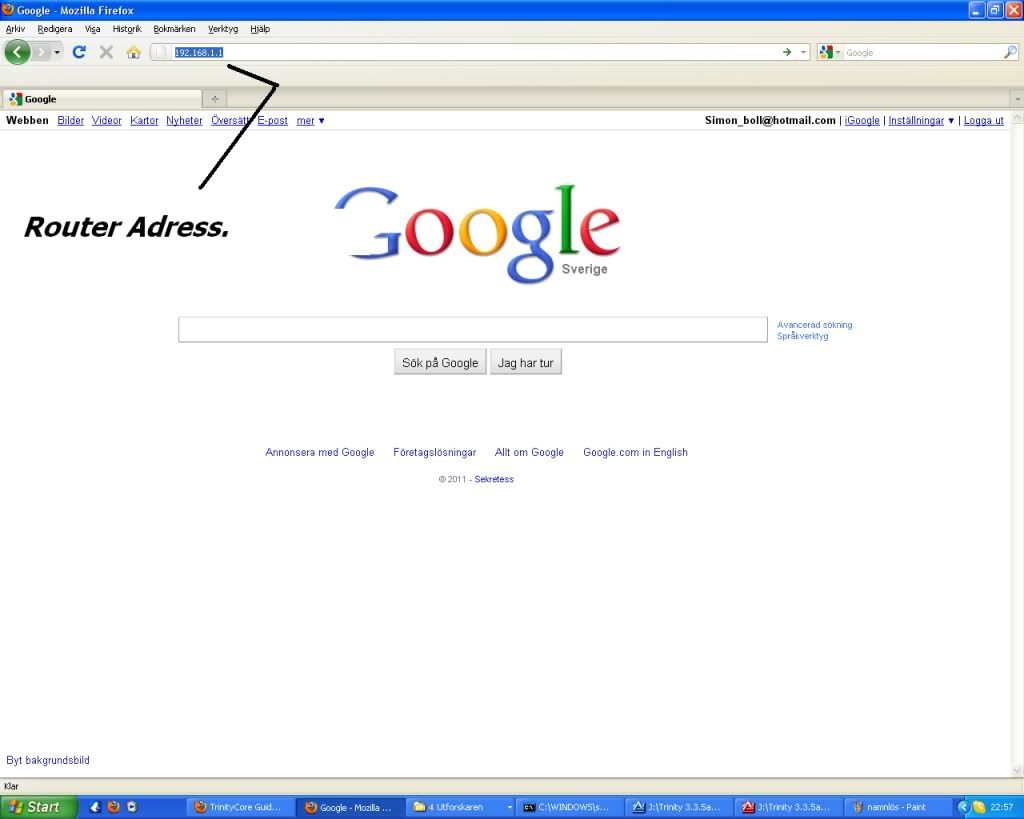
Would ask about Username & Password.
Normally it should be [Admin for username & Password for password] if you haven't change in the future.
Now you should getting up like this:
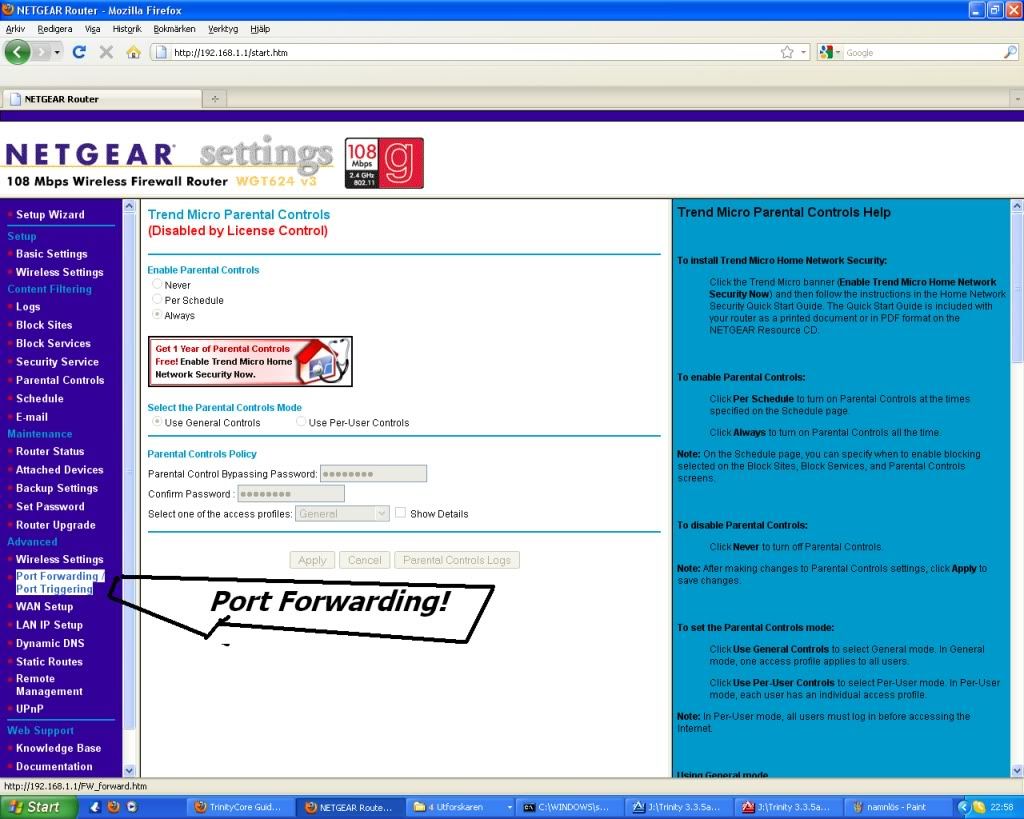
it's depends which router you are using.
You are going to " Port-forwarding " section on which router you ever use.
There you should open up:
Code:3724 - 3724 80 - 80 3306 - 3306 8129 - 8129 8093 -8093 6112 - 6112 6881-6999 3036 - 3036 8050 -8050
For more realms you should even open up:
And so on , depends how many you are going to make!Code:8086 - 8086 8087 - 8087 8088- 8088
Now the 2 most hardly part is over.
Now go to repack folder, start your MYSQL.
Make sure it's running,
Starts up Heidisql,
Then go to " realms " table section again.
& at Realmlist,
There you should paste it in.
for example:
After this, restart server & it should working.Code:ID 1 Name Zerkz PvP Adress: Scary-WoW.dyndns.com port 8085 ID 2 Name: Zerkyz Midrate, Adress: Scary-WoW.Dyndns.com port: 8086
Hope you guys like the tutorial, hehe, comment!
Please reply or PM me if you need any assist.
Thanks!
› See More: Make Your Trinity Realm Public [Easy Noob Tutorial With Pictures] *HoT*
-
15-06-11, 03:06 AM #2Beginner


- Join Date
- Mar 2011
- Posts
- 29
- Post Thanks / Like
- Rep Power
- 15
- Reputation
- 3
-
09-01-12, 08:17 PM #3Beginner

- Join Date
- Jan 2012
- Posts
- 16
- Post Thanks / Like
- Rep Power
- 15
- Reputation
- 1
Thank You Very Much This a a Good Guide XD
-
31-03-12, 08:22 AM #4Beginner
- Join Date
- Aug 2010
- Posts
- 4
- Post Thanks / Like
- Rep Power
- 16
- Reputation
- 1
I got a little problem with that.. I've opened ports, done everything, set my realmlist n all that,
when I try to log in I get to the Realm Selection and when I press on my realm, it pops open and says "Logging in to game server" then closes it again.
Any suggestions?
BTW, Great guide!
-
12-09-12, 04:59 PM #5Beginner
- Join Date
- Jun 2010
- Posts
- 3
- Post Thanks / Like
- Rep Power
- 16
- Reputation
- 1
Need to do it through Hamachi just for me and my girlfriend. Can you do that for me?
Send me a private message. If it can't be done in Juetie's Blizzlike Server
Also blizzlike? Does that mean It will take forever to level up? Or is it Fast leveling? I want fast leveling.
But idk what repack of trinity gives me fast level for PVE And PVP
-
16-09-12, 05:57 PM #6Beginner
- Join Date
- Sep 2012
- Posts
- 1
- Post Thanks / Like
- Rep Power
- 14
- Reputation
- 1
Problem
Register to remove this adHey man i did everything you said and when my friends try to log on it shows connecting for 5 seconds then shows unable to connect, any idea? and my router has internal port ....-.... and external port, i am new to this, so where was i supposed to write the port ids? xD, thank you

Bookmarks